junegunn / fzf
:cherry_blossom: A command-line fuzzy finder
📥 Clone
https://github.com/junegunn/fzf.git





fzf is a general-purpose command-line fuzzy finder.
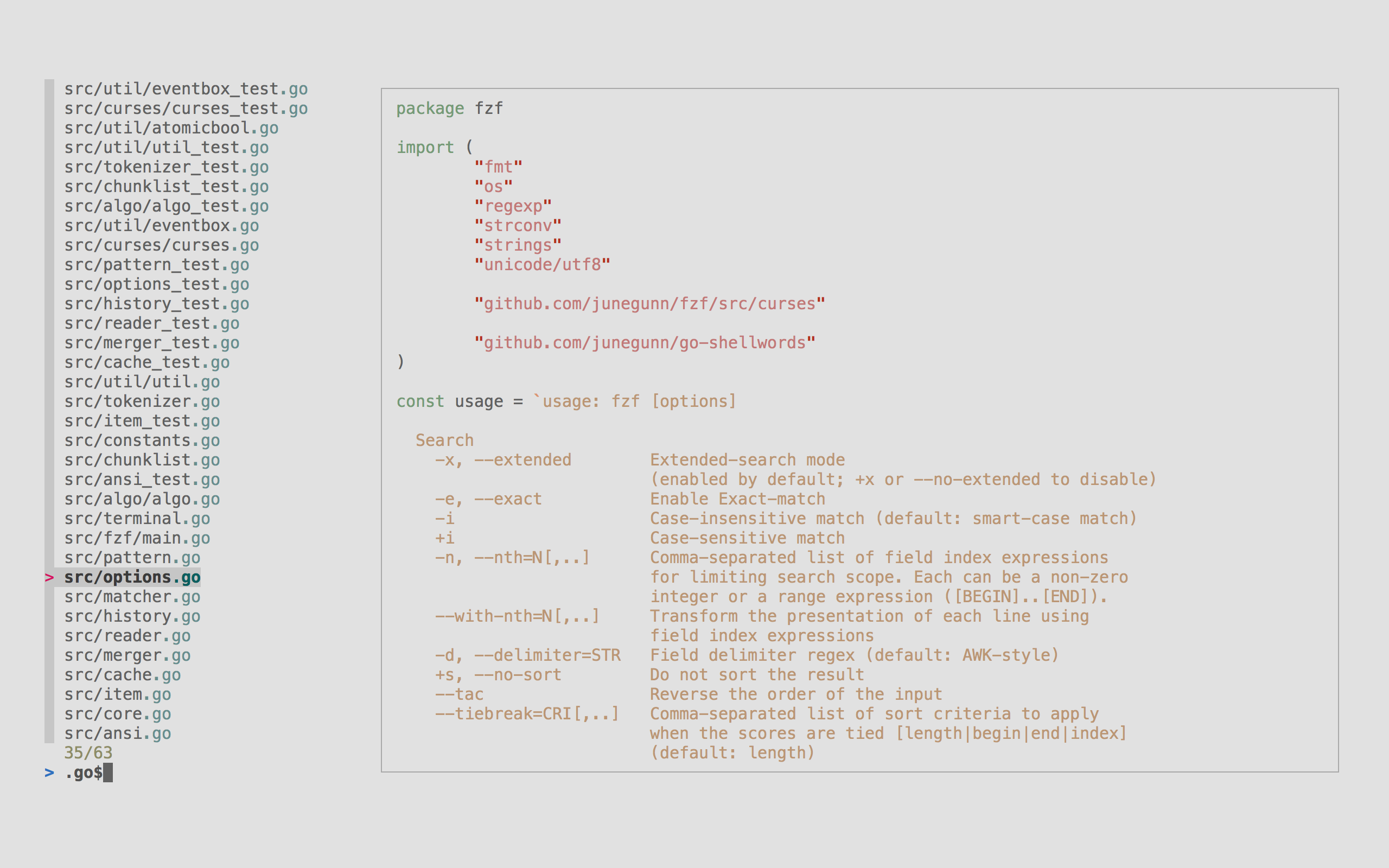
It's an interactive filter program for any kind of list; files, command history, processes, hostnames, bookmarks, git commits, etc. It implements a "fuzzy" matching algorithm, so you can quickly type in patterns with omitted characters and still get the results you want.
Highlights
- Portable — Distributed as a single binary for easy installation
- Fast — Optimized to process millions of items instantly
- Versatile — Fully customizable through an event-action binding mechanism
- All-inclusive — Comes with integrations for Bash, Zsh, Fish, Vim, and Neovim
Installation
Using Homebrew
You can use Homebrew (on macOS or Linux) to install fzf.
brew install fzf[!IMPORTANT]
To set up shell integration (key bindings and fuzzy completion),
see the instructions below.
fzf is also available via MacPorts: sudo port install fzf
Using Mise
You can use mise to install fzf.
mise use -g fzf@latestLinux packages
| Package Manager | Linux Distribution | Command |
|---|---|---|
| APK | Alpine Linux | sudo apk add fzf |
| APT | Debian 9+/Ubuntu 19.10+ | sudo apt install fzf |
| Conda | conda install -c conda-forge fzf | |
| DNF | Fedora | sudo dnf install fzf |
| Nix | NixOS, etc. | nix-env -iA nixpkgs.fzf |
| Pacman | Arch Linux | sudo pacman -S fzf |
| pkg | FreeBSD | pkg install fzf |
| pkgin | NetBSD | pkgin install fzf |
| pkg_add | OpenBSD | pkg_add fzf |
| Portage | Gentoo | emerge --ask app-shells/fzf |
| Spack | spack install fzf | |
| XBPS | Void Linux | sudo xbps-install -S fzf |
| Zypper | openSUSE | sudo zypper install fzf |
[!IMPORTANT]
To set up shell integration (key bindings and fuzzy completion),
see the instructions below.

Windows packages
On Windows, fzf is available via Chocolatey, Scoop, Winget, and MSYS2:
| Package manager | Command |
|---|---|
| Chocolatey | choco install fzf |
| Scoop | scoop install fzf |
| Winget | winget install fzf |
| MSYS2 (pacman) | pacman -S $MINGW_PACKAGE_PREFIX-fzf |
Using git
Alternatively, you can "git clone" this repository to any directory and run install script.
git clone --depth 1 https://github.com/junegunn/fzf.git ~/.fzf
~/.fzf/install
The install script will add lines to your shell configuration file to modify
$PATH and set up shell integration.
Binary releases
You can download the official fzf binaries from the releases page.
- https://github.com/junegunn/fzf/releases
Setting up shell integration
Add the following line to your shell configuration file.
- bash
# Set up fzf key bindings and fuzzy completion
eval "$(fzf --bash)"- zsh
# Set up fzf key bindings and fuzzy completion
source <(fzf --zsh)- fish
# Set up fzf key bindings
fzf --fish | source[!NOTE]--bash,--zsh, and--fishoptions are only available in fzf 0.48.0 or
later. If you have an older version of fzf, or want finer control, you can
source individual script files in the /shell directory. The
location of the files may vary depending on the package manager you use.
Please refer to the package documentation for more information.
(e.g.apt show fzf)
[!TIP]
You can disable CTRL-T, CTRL-R, or ALT-C bindings by setting the
corresponding*_COMMANDvariable to an empty string when sourcing the
script. For example, to disable CTRL-R and ALT-C:
> bash:FZF_CTRL_R_COMMAND= FZF_ALT_C_COMMAND= eval "$(fzf --bash)"
zsh:FZF_CTRL_R_COMMAND= FZF_ALT_C_COMMAND= source <(fzf --zsh)
* fish:fzf --fish | FZF_CTRL_R_COMMAND= FZF_ALT_C_COMMAND= source
> Setting the variables after sourcing the script will have no effect.
Vim/Neovim plugin
If you use vim-plug, add this to your Vim configuration file:
Plug 'junegunn/fzf', { 'do': { -> fzf#install() } }
Plug 'junegunn/fzf.vim'junegunn/fzfprovides the basic library functions
fzf#install()makes sure that you have the latest binaryjunegunn/fzf.vimis a separate project
To learn more about the Vim integration, see README-VIM.md.
[!TIP]
If you use Neovim and prefer Lua-based plugins, check out
fzf-lua.
Upgrading fzf
fzf is being actively developed, and you might want to upgrade it once in a while. Please follow the instruction below depending on the installation method used.
- git:
cd ~/.fzf && git pull && ./install - brew:
brew update; brew upgrade fzf - macports:
sudo port upgrade fzf - chocolatey:
choco upgrade fzf - vim-plug:
:PlugUpdate fzf
See BUILD.md.
Usage
fzf will launch interactive finder, read the list from STDIN, and write the selected item to STDOUT.
find * -type f | fzf > selectedWithout STDIN pipe, fzf will traverse the file system under the current directory to get the list of files.
vim $(fzf)[!NOTE]
You can override the default behavior
Either by setting$FZF_DEFAULT_COMMANDto a command that generates the desired list
Or by setting--walker,--walker-root, and--walker-skipoptions in$FZF_DEFAULT_OPTS
[!WARNING]
A more robust solution would be to usexargsbut we've presented
the above as it's easier to grasp> fzf --print0 | xargs -0 -o vim >
[!TIP]
fzf also has the ability to turn itself into a different process.
>> fzf --bind 'enter:become(vim {})' >
> See Turning into a different process
for more information.
Using the finder
CTRL-K/CTRL-J(orCTRL-P/CTRL-N) to move cursor up and downEnterkey to select the item,CTRL-C/CTRL-G/ESCto exit- On multi-select mode (
-m),TABandShift-TABto mark multiple items - Emacs style key bindings
- Mouse: scroll, click, double-click; shift-click and shift-scroll on
Display modes
fzf by default runs in fullscreen mode, but there are other display modes.
--height mode
With --height HEIGHT[%], fzf will start below the cursor with the given height.
fzf --height 40%reverse layout and --border goes well with this option.
fzf --height 40% --layout reverse --borderBy prepending ~ to the height, you're setting the maximum height.
# Will take as few lines as possible to display the list
seq 3 | fzf --height ~100%
seq 3000 | fzf --height ~100%
Height value can be a negative number.
# Screen height - 3
fzf --height -3
--tmux mode
With --tmux option, fzf will start in a tmux popup.
# --tmux [center|top|bottom|left|right][,SIZE[%]][,SIZE[%][,border-native]]

fzf --tmux center         # Center, 50% width and height
fzf --tmux 80%            # Center, 80% width and height
fzf --tmux 100%,50%       # Center, 100% width and 50% height
fzf --tmux left,40%       # Left, 40% width
fzf --tmux left,40%,90%   # Left, 40% width, 90% height
fzf --tmux top,40%        # Top, 40% height
fzf --tmux bottom,80%,40% # Bottom, 80% width, 40% height
--tmux is silently ignored when you're not on tmux.
[!NOTE]
If you're stuck with an old version of tmux that doesn't support popup,
or if you want to open fzf in a regular tmux pane, check out
fzf-tmux script.
[!TIP]
You can add these options to$FZF_DEFAULT_OPTSso that they're applied by
default. For example,
>> # Open in tmux popup if on tmux, otherwise use --height mode > export FZF_DEFAULT_OPTS='--height 40% --tmux bottom,40% --layout reverse --border top' >
Search syntax
Unless otherwise specified, fzf starts in "extended-search mode" where you can
type in multiple search terms delimited by spaces. e.g. ^music .mp3$ sbtrkt
!fire
| Token | Match type | Description |
|---|---|---|
sbtrkt | fuzzy-match | Items that match sbtrkt |
'wild | exact-match (quoted) | Items that include wild |
'wild' | exact-boundary-match (quoted both ends) | Items that include wild at word boundaries |
^music | prefix-exact-match | Items that start with music |
.mp3$ | suffix-exact-match | Items that end with .mp3 |
!fire | inverse-exact-match | Items that do not include fire |
!^music | inverse-prefix-exact-match | Items that do not start with music |
!.mp3$ | inverse-suffix-exact-match | Items that do not end with .mp3 |
-e or --exact option. Note that when --exact is set,
'-prefix "unquotes" the term.
A single bar character term acts as an OR operator. For example, the following
query matches entries that start with core and end with either go, rb,
or py.
^core go$ | rb$ | py$Environment variables
FZF_DEFAULT_COMMAND
- Default command to use when input is tty
- e.g.
export FZF_DEFAULT_COMMAND='fd --type f' FZF_DEFAULT_OPTS
- Default options
- e.g.
export FZF_DEFAULT_OPTS="--layout=reverse --inline-info" FZF_DEFAULT_OPTS_FILE
- If you prefer to manage default options in a file, set this variable to
- e.g.
export FZF_DEFAULT_OPTS_FILE=~/.fzfrc
[!WARNING]FZF_DEFAULT_COMMANDis not used by shell integration due to the
slight difference in requirements.
>CTRL-Truns$FZF_CTRL_T_COMMANDto get a list of files and directories
ALT-Cruns$FZF_ALT_C_COMMANDto get a list of directories
vim ~/**<tab>runsfzf_compgen_path()with the prefix (~/) as the first argument
cd foo**<tab>runsfzf_compgen_dir()with the prefix (foo) as the first argument
> The available options are described later in this document.
Customizing the look
The user interface of fzf is fully customizable with a large number of
configuration options. For a quick setup, you can start with one of the style
presets — default, full, or minimal — using the --style option.
fzf --style full \
--preview 'fzf-preview.sh {}' --bind 'focus:transform-header:file --brief {}'| Preset | Screenshot |
|---|---|
default | 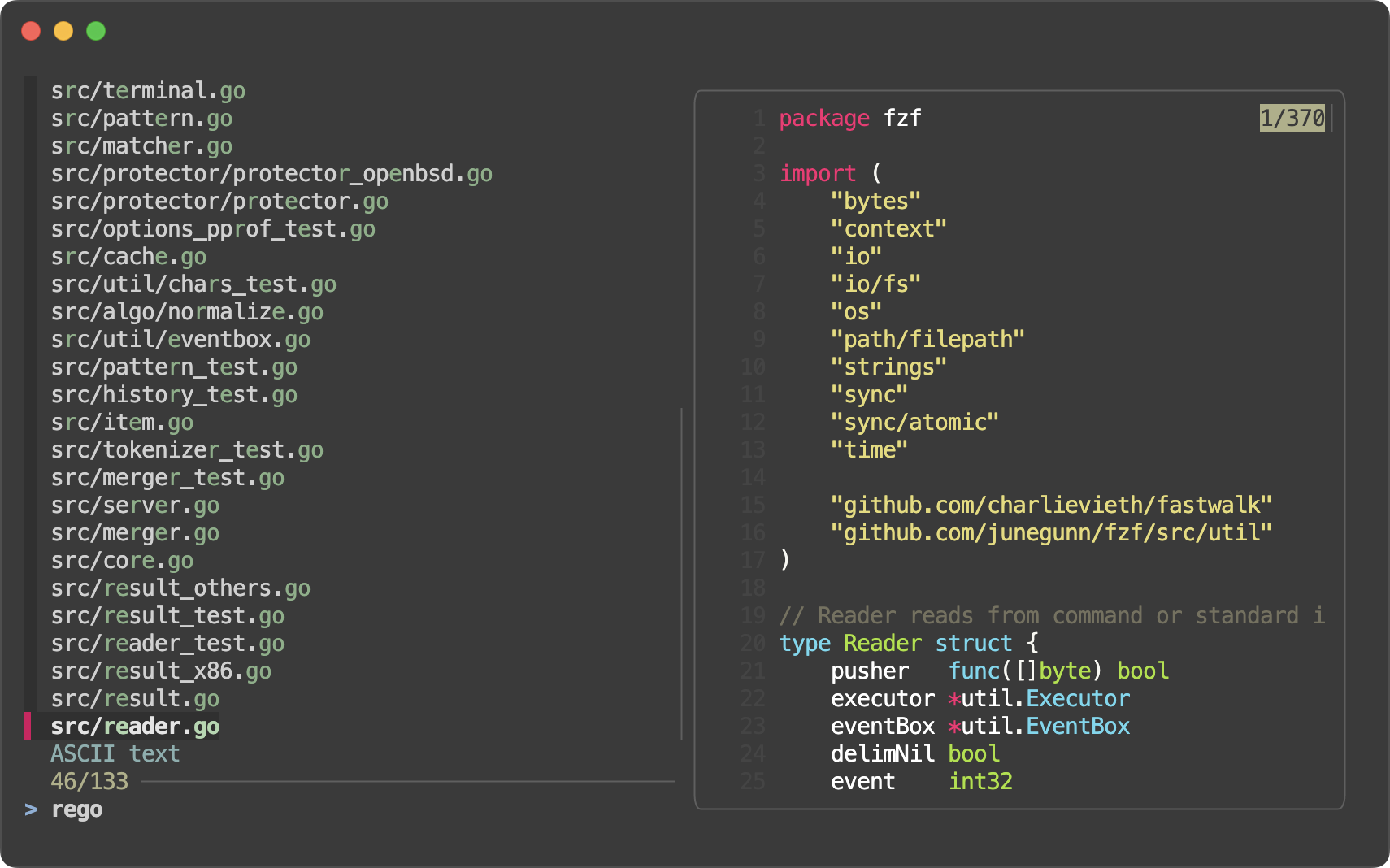 |
full | 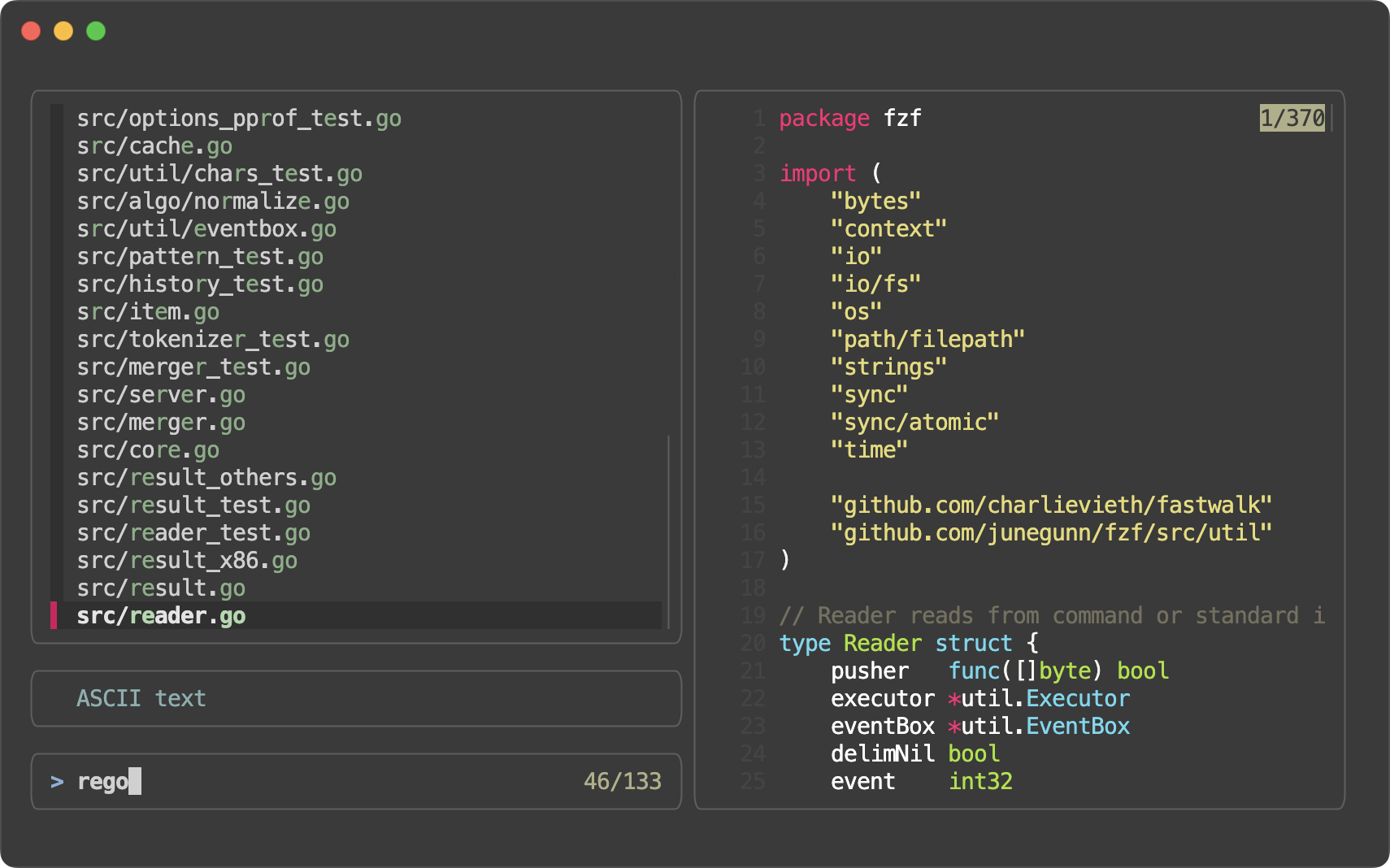 |
minimal | 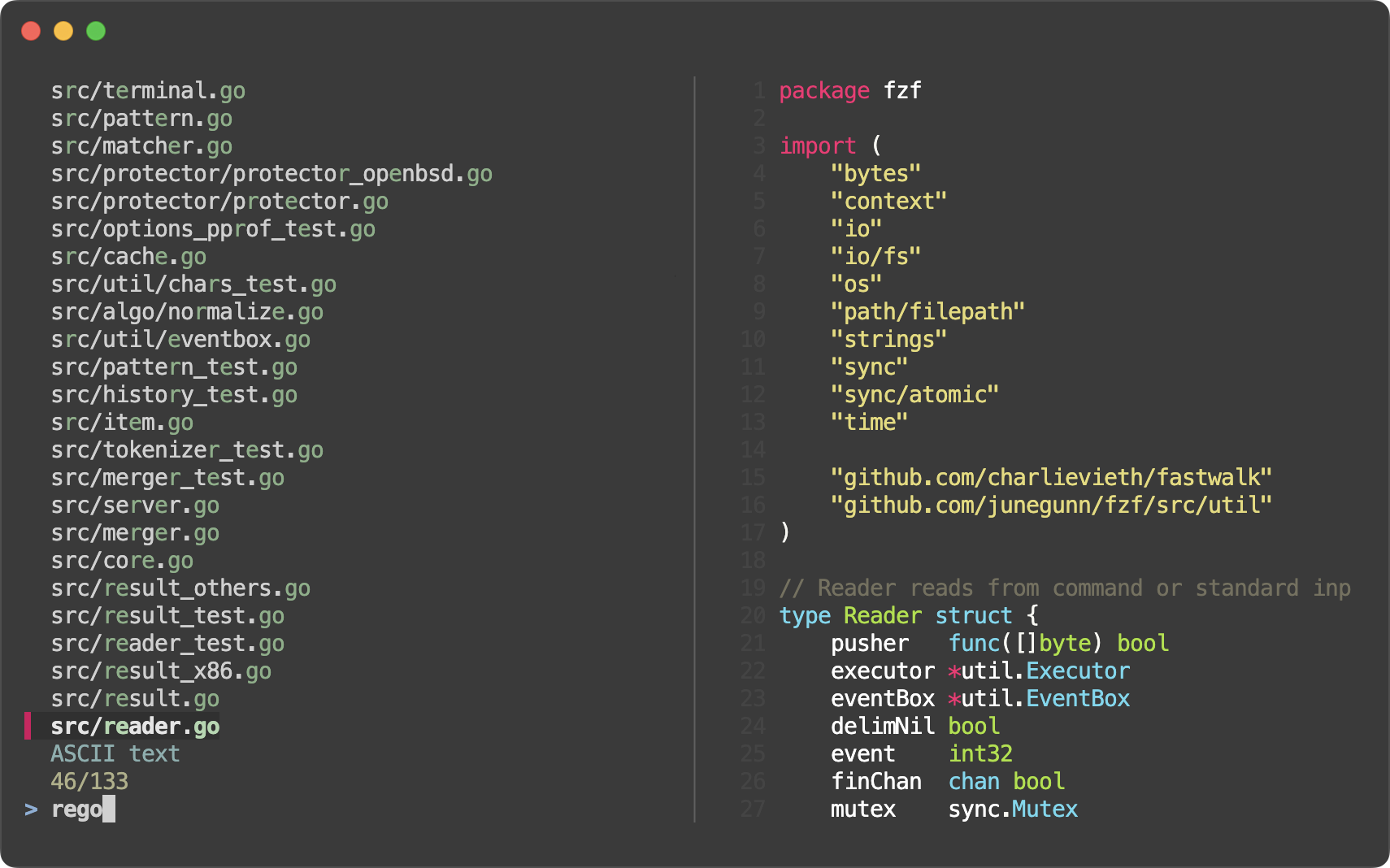 |
full preset:
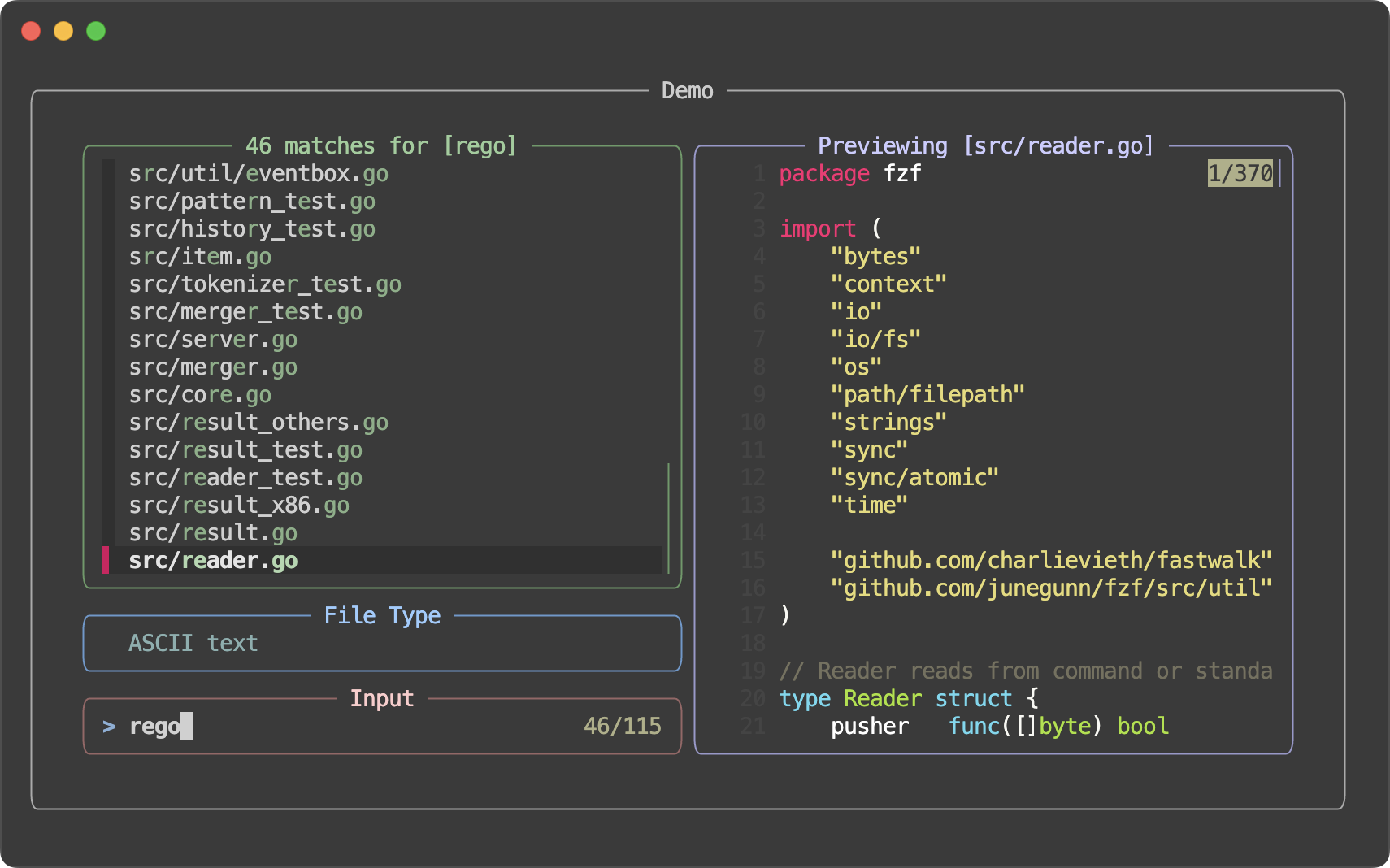
git ls-files | fzf --style full \
    --border --padding 1,2 \
    --border-label ' Demo ' --input-label ' Input ' --header-label ' File Type ' \
    --preview 'fzf-preview.sh {}' \
    --bind 'result:transform-list-label:
        if [[ -z $FZF_QUERY ]]; then
          echo " $FZF_MATCH_COUNT items "
        else
          echo " $FZF_MATCH_COUNT matches for [$FZF_QUERY] "
        fi
        ' \
    --bind 'focus:transform-preview-label:[[ -n {} ]] && printf " Previewing [%s] " {}' \
    --bind 'focus:+transform-header:file --brief {} || echo "No file selected"' \
    --bind 'ctrl-r:change-list-label( Reloading the list )+reload(sleep 2; git ls-files)' \
    --color 'border:#aaaaaa,label:#cccccc' \
    --color 'preview-border:#9999cc,preview-label:#ccccff' \
    --color 'list-border:#669966,list-label:#99cc99' \
    --color 'input-border:#996666,input-label:#ffcccc' \
    --color 'header-border:#6699cc,header-label:#99ccff'
Options
See the man page (fzf --man or man fzf) for the full list of options.
Demo
If you learn by watching videos, check out this screencast by @samoshkin to explorefzf features.
Examples
Disclaimer: The examples on this page are maintained by the community and are not thoroughly tested* Key bindings for command-line
By setting up shell integration, you can use the following key bindings in bash, zsh, and fish.
CTRL-T- Paste the selected files and directories onto the command-line
- The list is generated using
--walker file,dir,follow,hiddenoption
- You can override the behavior by setting
FZF_CTRL_T_COMMANDto a custom command that generates the desired list
- Or you can set
--walker*options inFZF_CTRL_T_OPTS
- Set
FZF_CTRL_T_OPTSto pass additional options to fzf
# Preview file content using bat (https://github.com/sharkdp/bat)
      export FZF_CTRL_T_OPTS="
        --walker-skip .git,node_modules,target
        --preview 'bat -n --color=always {}'
--bind 'ctrl-/:change-preview-window(down|hidden|)'"- Can be disabled by setting
FZF_CTRL_T_COMMANDto an empty string when
CTRL-R- Paste the selected command from history onto the command-line
- If you want to see the commands in chronological order, press
CTRL-R
- Press
ALT-Rto toggle "raw" mode where you can see the surrounding items
CTRL-N and CTRL-P to move
between the matching items only.
- Press
CTRL-/orALT-/to toggle line wrapping
- Set
FZF_CTRL_R_OPTSto pass additional options to fzf
# CTRL-Y to copy the command into clipboard using pbcopy
      export FZF_CTRL_R_OPTS="
        --bind 'ctrl-y:execute-silent(echo -n {2..} | pbcopy)+abort'
        --color header:italic
--header 'Press CTRL-Y to copy command into clipboard'"- Can be disabled by setting
FZF_CTRL_R_COMMANDto an empty string when
- Custom override via a non-empty
FZF_CTRL_R_COMMANDis not yet supported and will emit a warning ALT-C- cd into the selected directory
- The list is generated using
--walker dir,follow,hiddenoption
- Set
FZF_ALT_C_COMMANDto override the default command
- Or you can set
--walker-*options inFZF_ALT_C_OPTS
- Set
FZF_ALT_C_OPTSto pass additional options to fzf
# Print tree structure in the preview window
      export FZF_ALT_C_OPTS="
        --walker-skip .git,node_modules,target
--preview 'tree -C {}'"- Can be disabled by setting
FZF_ALT_C_COMMANDto an empty string when
Display modes for these bindings can be separately configured via
FZF_{CTRL_T,CTRL_R,ALT_C}_OPTS or globally via FZF_DEFAULT_OPTS.
(e.g. FZF_CTRL_R_OPTS='--tmux bottom,60% --height 60% --border top')
More tips can be found on the wiki page.
Fuzzy completion
Shell integration also provides fuzzy completion for bash, zsh, and fish.
Files and directories
Fuzzy completion for files and directories can be triggered if the word before
the cursor ends with the trigger sequence, which is by default **.
COMMAND [DIRECTORY/][FUZZY_PATTERN]**<TAB>
# Files under the current directory
# - You can select multiple items with TAB key
vim **<TAB>

# Files under parent directory
vim ../**<TAB>

# Files under parent directory that match `fzf`
vim ../fzf**<TAB>

# Files under your home directory
vim ~/**<TAB>


# Directories under current directory (single-selection)
cd **<TAB>

# Directories under ~/github that match `fzf`
cd ~/github/fzf**<TAB>
Process IDs
Fuzzy completion for PIDs is provided for kill command.
# Can select multiple processes with <TAB> or <Shift-TAB> keys
kill -9 **<TAB>
Host names
For ssh command, fuzzy completion for hostnames is provided. The names are extracted from /etc/hosts and ~/.ssh/config.
ssh **<TAB>Environment variables / Aliases
# bash and zsh
unset **<TAB>
export **<TAB>
unalias **<TAB>

# fish
set <SHIFT-TAB>
Customizing fuzzy completion for bash and zsh
Customizing fzf options for completion
# Use ~~ as the trigger sequence instead of the default **
export FZF_COMPLETION_TRIGGER='~~'
# Options to fzf command
export FZF_COMPLETION_OPTS='--border --info=inline'
# Options for path completion (e.g. vim **<TAB>)
export FZF_COMPLETION_PATH_OPTS='--walker file,dir,follow,hidden'
# Options for directory completion (e.g. cd **<TAB>)
export FZF_COMPLETION_DIR_OPTS='--walker dir,follow'
# Advanced customization of fzf options via _fzf_comprun function
# - The first argument to the function is the name of the command.
# - You should make sure to pass the rest of the arguments ($@) to fzf.
_fzf_comprun() {
local command=$1
shift
case "$command" in
cd) fzf --preview 'tree -C {} | head -200' "$@" ;;
export|unset) fzf --preview "eval 'echo \
Customizing completion source for paths and directories
# Use fd (https://github.com/sharkdp/fd) for listing path candidates.
# - The first argument to the function ($1) is the base path to start traversal
# - See the source code (completion.{bash,zsh}) for the details.
_fzf_compgen_path() {
fd --hidden --follow --exclude ".git" . "$1"
}
# Use fd to generate the list for directory completion
_fzf_compgen_dir() {
fd --type d --hidden --follow --exclude ".git" . "$1"
}
Supported commands (bash)
On bash, fuzzy completion is enabled only for a predefined set of commands
(complete | grep _fzf to see the list). But you can enable it for other
commands as well by using _fzf_setup_completion helper function.
# usage: _fzf_setup_completion path|dir|var|alias|host COMMANDS...
_fzf_setup_completion path ag git kubectl
_fzf_setup_completion dir tree
Custom fuzzy completion
(Custom completion API is experimental and subject to change)
For a command named "COMMAND", define _fzf_complete_COMMAND function using
_fzf_complete helper.
# Custom fuzzy completion for "doge" command
# e.g. doge **<TAB>
_fzf_complete_doge() {
_fzf_complete --multi --reverse --prompt="doge> " -- "$@" < <(
echo very
echo wow
echo such
echo doge
)
}
- The arguments before
-- are the options to fzf.
- After
--, simply pass the original completion arguments unchanged ("$@").
- Then, write a set of commands that generates the completion candidates and
feed its output to the function using process substitution (< <(...)).
zsh will automatically pick up the function using the naming convention but in
bash you have to manually associate the function with the command using the
complete command.
[ -n "$BASH" ] && complete -F _fzf_complete_doge -o default -o bashdefault doge
If you need to post-process the output from fzf, define
_fzf_complete_COMMAND_post as follows.
_fzf_complete_foo() {
_fzf_complete --multi --reverse --header-lines=3 -- "$@" < <(
ls -al
)
}
_fzf_complete_foo_post() {
awk '{print $NF}'
}
[ -n "$BASH" ] && complete -F _fzf_complete_foo -o default -o bashdefault foo
Fuzzy completion for fish
(Available in 0.68.0 or later)
Fuzzy completion for fish differs from bash and zsh in that:
- It doesn't require a trigger sequence like
**. Instead, if activates
on Shift-TAB, while TAB preserves fish's native completion behavior.
- It relies on fish's native completion system to populate the candidate list,
rather than performing a recursive file system traversal. For recursive
searching, use the CTRL-T binding instead.
- The only supported configuration variable is
FZF_COMPLETION_OPTS.
That said, just like in bash and zsh, you can implement custom completion for
a specific command by defining an _fzf_complete_COMMAND function. For example:
function _fzf_complete_foo
function _fzf_complete_foo_post
awk '{print $NF}'
end
_fzf_complete --multi --reverse --header-lines=3 -- $argv < (ls -al | psub)
functions -e _fzf_complete_foo_post
end
And here's a more complex example for customizing git
function _fzf_complete_git
switch $argv[2]
case checkout switch
_fzf_complete --reverse --no-preview -- $argv < (git branch --all --format='%(refname:short)' | psub)
case add
function _fzf_complete_git_post
awk '{print $NF}'
end
_fzf_complete --multi --reverse -- $argv < (git status --short | psub)
case show log diff
function _fzf_complete_git_post
awk '{print $1}'
end
_fzf_complete --reverse --no-sort --preview='git show --color=always {1}' -- $argv < (git log --oneline | psub)
case ''
__fzf_complete_native "$argv[1] " --query=(commandline -t | string escape)
case '*'
set -l -- current_token (commandline -t)
__fzf_complete_native "$argv $current_token" --query=(string escape -- $current_token) --multi
end
functions -e _fzf_complete_git_post
end
Vim plugin
See README-VIM.md.
Advanced topics
Customizing for different types of input
Since fzf is a general-purpose text filter, its algorithm was designed to
"generally" work well with any kind of input. However, admittedly, there is no
true one-size-fits-all solution, and you may want to tweak the algorithm and
some of the settings depending on the type of the input. To make this process
easier, fzf provides a set of "scheme"s for some common input types.
Scheme Description --scheme=defaultGeneric scheme designed to work well with any kind of input --scheme=pathSuitable for file paths --scheme=historySuitable for command history or any input where chronological ordering is important
(See fzf --man for the details)
Performance
fzf is fast. Performance should not be a problem in most use cases. However,
you might want to be aware of the options that can affect performance.
--ansi tells fzf to extract and parse ANSI color codes in the input, and it
makes the initial scanning slower. So it's not recommended that you add it
to your $FZF_DEFAULT_OPTS.
--nth makes fzf slower because it has to tokenize each line.- A plain string
--delimiter should be preferred over a regular expression
delimiter.
--with-nth makes fzf slower as fzf has to tokenize and reassemble each
line.
Executing external programs
You can set up key bindings for starting external processes without leaving
fzf (execute, execute-silent).
# Press F1 to open the file with less without leaving fzf
# Press CTRL-Y to copy the line to clipboard and aborts fzf (requires pbcopy)
fzf --bind 'f1:execute(less -f {}),ctrl-y:execute-silent(echo {} | pbcopy)+abort'
See KEY/EVENT BINDINGS section of the man page for details.
Turning into a different process
become(...) is similar to execute(...)/execute-silent(...) described
above, but instead of executing the command and coming back to fzf on
complete, it turns fzf into a new process for the command.
fzf --bind 'enter:become(vim {})'
Compared to the seemingly equivalent command substitution vim "$(fzf)", this
approach has several advantages:
- Vim will not open an empty file when you terminate fzf with
CTRL-C
- Vim will not open an empty file when you press ENTER on an empty
result
- Can handle multiple selections even when they have whitespaces
fzf --multi --bind 'enter:become(vim {+})'
To be fair, running fzf --print0 | xargs -0 -o vim instead of vim "$(fzf)"
resolves all of the issues mentioned. Nonetheless, become(...) still offers
additional benefits in different scenarios.
- You can set up multiple bindings to handle the result in different ways
without any wrapping script
fzf --bind 'enter:become(vim {}),ctrl-e:become(emacs {})'
- Previously, you would have to use
--expect=ctrl-e and check the first
line of the output of fzf
- You can easily build the subsequent command using the field index
expressions of fzf
# Open the file in Vim and go to the line
git grep --line-number . |
fzf --delimiter : --nth 3.. --bind 'enter:become(vim {1} +{2})'
Reloading the candidate list
By binding reload action to a key or an event, you can make fzf dynamically
reload the candidate list. See https://github.com/junegunn/fzf/issues/1750 for
more details.
1. Update the list of processes by pressing CTRL-R
ps -ef |
fzf --bind 'ctrl-r:reload(ps -ef)' \
--header 'Press CTRL-R to reload' --header-lines=1 \
--height=50% --layout=reverse
2. Switch between sources by pressing CTRL-D or CTRL-F
FZF_DEFAULT_COMMAND='find . -type f' \
fzf --bind 'ctrl-d:reload(find . -type d),ctrl-f:reload(eval "$FZF_DEFAULT_COMMAND")' \
--height=50% --layout=reverse
3. Interactive ripgrep integration
The following example uses fzf as the selector interface for ripgrep. We bound
reload action to change event, so every time you type on fzf, the ripgrep
process will restart with the updated query string denoted by the placeholder
expression {q}. Also, note that we used --disabled option so that fzf
doesn't perform any secondary filtering.
: | rg_prefix='rg --column --line-number --no-heading --color=always --smart-case' \
fzf --bind 'start:reload:$rg_prefix ""' \
--bind 'change:reload:$rg_prefix {q} || true' \
--bind 'enter:become(vim {1} +{2})' \
--ansi --disabled \
--height=50% --layout=reverse
If ripgrep doesn't find any matches, it will exit with a non-zero exit status,
and fzf will warn you about it. To suppress the warning message, we added
|| true to the command, so that it always exits with 0.
See "Using fzf as interactive Ripgrep launcher"
for more sophisticated examples.
Preview window
When the --preview option is set, fzf automatically starts an external process
with the current line as the argument and shows the result in the split window.
Your $SHELL is used to execute the command with $SHELL -c COMMAND.
The window can be scrolled using the mouse or custom key bindings.
# {} is replaced with the single-quoted string of the focused line
fzf --preview 'cat {}'
Preview window supports ANSI colors, so you can use any program that
syntax-highlights the content of a file, such as
Bat or
Highlight:
fzf --preview 'bat --color=always {}' --preview-window '~3'
You can customize the size, position, and border of the preview window using
--preview-window option, and the foreground and background color of it with
--color option. For example,
fzf --height 40% --layout reverse --info inline --border \
--preview 'file {}' --preview-window up,1,border-horizontal \
--bind 'ctrl-/:change-preview-window(50%|hidden|)' \
--color 'fg:#bbccdd,fg+:#ddeeff,bg:#334455,preview-bg:#223344,border:#778899'
See the man page (man fzf) for the full list of options.
More advanced examples can be found here.
[!WARNING]
Since fzf is a general-purpose text filter rather than a file finder, it is
not a good idea to add --preview option to your $FZF_DEFAULT_OPTS.
> > # *********************
> # ** DO NOT DO THIS! **
> # *********************
> export FZF_DEFAULT_OPTS='--preview "bat --style=numbers --color=always --line-range :500 {}"'
>
> # bat doesn't work with any input other than the list of files
> ps -ef | fzf
> seq 100 | fzf
> history | fzf
>
Previewing an image
fzf can display images in the preview window using one of the following protocols:
See bin/fzf-preview.sh script for more information.
fzf --preview 'fzf-preview.sh {}'
Tips
Respecting .gitignore
You can use fd,
ripgrep, or the silver
searcher to traverse the file
system while respecting .gitignore.
# Feed the output of fd into fzf
fd --type f --strip-cwd-prefix | fzf
# Setting fd as the default source for fzf
export FZF_DEFAULT_COMMAND='fd --type f --strip-cwd-prefix'
# Now fzf (w/o pipe) will use the fd command to generate the list
fzf
# To apply the command to CTRL-T as well
export FZF_CTRL_T_COMMAND="$FZF_DEFAULT_COMMAND"
If you want the command to follow symbolic links and don't want it to exclude
hidden files, use the following command:
export FZF_DEFAULT_COMMAND='fd --type f --strip-cwd-prefix --hidden --follow --exclude .git'
Fish shell
CTRL-T key binding of fish, unlike those of bash and zsh, will use the last
token on the command-line as the root directory for the recursive search. For
instance, hitting CTRL-T at the end of the following command-line
ls /var/
will list all files and directories under /var/.
When using a custom FZF_CTRL_T_COMMAND, use the unexpanded $dir variable to
make use of this feature. $dir defaults to . when the last token is not a
valid directory. Example:
set -g FZF_CTRL_T_COMMAND "command find -L \$dir -type f 2> /dev/null | sed '1d; s#^\./##'"
fzf Theme Playground
fzf Theme Playground created by
Vitor Mello is a webpage where you can
interactively create fzf themes.
Related projects
https://github.com/junegunn/fzf/wiki/Related-projects
The MIT License (MIT)
Copyright (c) 2013-2026 Junegunn Choi
Goods
Grab fzf T-shirts, mugs, and stickers here: https://commitgoods.com/collections/fzf
Sponsors :heart:
I would like to thank all the sponsors of this project who make it possible for me to continue to improve fzf.
If you'd like to sponsor this project, please visit https://github.com/sponsors/junegunn.










{}" "$@" ;;
ssh) fzf --preview 'dig {}' "$@" ;;
*) fzf --preview 'bat -n --color=always {}' "$@" ;;
esac
}Customizing completion source for paths and directories
%%CODEBLOCK28%%
Supported commands (bash)
On bash, fuzzy completion is enabled only for a predefined set of commands (%%INLINECODE146%% to see the list). But you can enable it for other commands as well by using %%INLINECODE147%% helper function.
%%CODEBLOCK29%%
Custom fuzzy completion
(Custom completion API is experimental and subject to change)
For a command named "COMMAND", define %%INLINECODE148%% function using %%INLINECODE149%% helper.
%%CODEBLOCK30%%
- The arguments before %%INLINECODE150%% are the options to fzf.
- After %%INLINECODE151%%, simply pass the original completion arguments unchanged (%%INLINECODE152%%).
- Then, write a set of commands that generates the completion candidates and
zsh will automatically pick up the function using the naming convention but in bash you have to manually associate the function with the command using the %%INLINECODE154%% command.
%%CODEBLOCK31%%
If you need to post-process the output from fzf, define %%INLINECODE155%% as follows.
%%CODEBLOCK32%%
Fuzzy completion for fish
(Available in 0.68.0 or later)
Fuzzy completion for fish differs from bash and zsh in that:
- It doesn't require a trigger sequence like %%INLINECODE156%%. Instead, if activates
- It relies on fish's native completion system to populate the candidate list,
- The only supported configuration variable is %%INLINECODE160%%.
%%CODEBLOCK33%%
And here's a more complex example for customizing %%INLINECODE162%%
%%CODEBLOCK34%%
Vim plugin
See README-VIM.md.
Advanced topics
Customizing for different types of input
Since fzf is a general-purpose text filter, its algorithm was designed to "generally" work well with any kind of input. However, admittedly, there is no true one-size-fits-all solution, and you may want to tweak the algorithm and some of the settings depending on the type of the input. To make this process easier, fzf provides a set of "scheme"s for some common input types.
| Scheme | Description |
|---|---|
| %%INLINECODE163%% | Generic scheme designed to work well with any kind of input |
| %%INLINECODE164%% | Suitable for file paths |
| %%INLINECODE165%% | Suitable for command history or any input where chronological ordering is important |
Performance
fzf is fast. Performance should not be a problem in most use cases. However, you might want to be aware of the options that can affect performance.
- %%INLINECODE167%% tells fzf to extract and parse ANSI color codes in the input, and it
- %%INLINECODE169%% makes fzf slower because it has to tokenize each line.
- A plain string %%INLINECODE170%% should be preferred over a regular expression
- %%INLINECODE171%% makes fzf slower as fzf has to tokenize and reassemble each
Executing external programs
You can set up key bindings for starting external processes without leaving fzf (%%INLINECODE172%%, %%INLINECODE173%%).
%%CODEBLOCK35%%
See KEY/EVENT BINDINGS section of the man page for details.
Turning into a different process
%%INLINECODE174%% is similar to %%INLINECODE175%%/%%INLINECODE176%% described above, but instead of executing the command and coming back to fzf on complete, it turns fzf into a new process for the command.
%%CODEBLOCK36%%
Compared to the seemingly equivalent command substitution %%INLINECODE177%%, this approach has several advantages:
- Vim will not open an empty file when you terminate fzf with
- Vim will not open an empty file when you press ENTER on an empty
- Can handle multiple selections even when they have whitespaces
To be fair, running %%INLINECODE178%% instead of %%INLINECODE179%% resolves all of the issues mentioned. Nonetheless, %%INLINECODE180%% still offers additional benefits in different scenarios.
- You can set up multiple bindings to handle the result in different ways
- Previously, you would have to use %%INLINECODE181%% and check the first
- You can easily build the subsequent command using the field index
Reloading the candidate list
By binding %%INLINECODE182%% action to a key or an event, you can make fzf dynamically reload the candidate list. See https://github.com/junegunn/fzf/issues/1750 for more details.
1. Update the list of processes by pressing CTRL-R
%%CODEBLOCK40%%
2. Switch between sources by pressing CTRL-D or CTRL-F
%%CODEBLOCK41%%
3. Interactive ripgrep integration
The following example uses fzf as the selector interface for ripgrep. We bound %%INLINECODE183%% action to %%INLINECODE184%% event, so every time you type on fzf, the ripgrep process will restart with the updated query string denoted by the placeholder expression %%INLINECODE185%%. Also, note that we used %%INLINECODE186%% option so that fzf doesn't perform any secondary filtering.
%%CODEBLOCK42%%
If ripgrep doesn't find any matches, it will exit with a non-zero exit status, and fzf will warn you about it. To suppress the warning message, we added %%INLINECODE187%% to the command, so that it always exits with 0.
See "Using fzf as interactive Ripgrep launcher" for more sophisticated examples.
Preview window
When the %%INLINECODE188%% option is set, fzf automatically starts an external process with the current line as the argument and shows the result in the split window. Your %%INLINECODE189%% is used to execute the command with %%INLINECODE190%%. The window can be scrolled using the mouse or custom key bindings.
%%CODEBLOCK43%%
Preview window supports ANSI colors, so you can use any program that syntax-highlights the content of a file, such as Bat or Highlight:
%%CODEBLOCK44%%
You can customize the size, position, and border of the preview window using %%INLINECODE191%% option, and the foreground and background color of it with %%INLINECODE192%% option. For example,
%%CODEBLOCK45%%
See the man page (%%INLINECODE193%%) for the full list of options.
More advanced examples can be found here.
[!WARNING]
Since fzf is a general-purpose text filter rather than a file finder, it is
not a good idea to add %%INLINECODE194%% option to your %%INLINECODE195%%.
> %%CODEBLOCK46%%
Previewing an image
fzf can display images in the preview window using one of the following protocols:
See bin/fzf-preview.sh script for more information.%%CODEBLOCK47%%
Tips
Respecting %%INLINECODE196%%
You can use fd, ripgrep, or the silver searcher to traverse the file system while respecting %%INLINECODE197%%.
%%CODEBLOCK48%%
If you want the command to follow symbolic links and don't want it to exclude hidden files, use the following command:
%%CODEBLOCK49%%
Fish shell
%%INLINECODE198%% key binding of fish, unlike those of bash and zsh, will use the last token on the command-line as the root directory for the recursive search. For instance, hitting %%INLINECODE199%% at the end of the following command-line
%%CODEBLOCK50%%
will list all files and directories under %%INLINECODE200%%.
When using a custom %%INLINECODE201%%, use the unexpanded %%INLINECODE202%% variable to make use of this feature. %%INLINECODE203%% defaults to %%INLINECODE204%% when the last token is not a valid directory. Example:
%%CODEBLOCK51%%
fzf Theme Playground
fzf Theme Playground created by Vitor Mello is a webpage where you can interactively create fzf themes.
Related projects
https://github.com/junegunn/fzf/wiki/Related-projects
The MIT License (MIT)
Copyright (c) 2013-2026 Junegunn Choi
Goods
Grab fzf T-shirts, mugs, and stickers here: https://commitgoods.com/collections/fzf
Sponsors :heart:
I would like to thank all the sponsors of this project who make it possible for me to continue to improve fzf.
If you'd like to sponsor this project, please visit https://github.com/sponsors/junegunn.