dockur / macos
MacOS inside a Docker container.
📥 Clone
https://github.com/dockur/macos.git
macOS

[![Build]][build_url]
[![Version]][tag_url]
[![Size]][tag_url]
[![Package]][pkg_url]
[![Pulls]][hub_url]
[![Build]][build_url] [![Version]][tag_url] [![Size]][tag_url] [![Package]][pkg_url] [![Pulls]][hub_url]
MacOS inside a Docker container.
Features ✨
- KVM acceleration
- Web-based viewer
- Automatic download
Usage 🐳
Via Docker Compose:
services:
  macos:
    image: dockurr/macos
    container_name: macos
    environment:
      VERSION: "14"
    devices:
      - /dev/kvm
      - /dev/net/tun
    cap_add:
      - NET_ADMIN
    ports:
      - 8006:8006
      - 5900:5900/tcp
      - 5900:5900/udp
    volumes:
      - ./macos:/storage
    restart: always
    stop_grace_period: 2m
Via Docker CLI:
docker run -it --rm --name macos -e "VERSION=14" -p 8006:8006 --device=/dev/kvm --device=/dev/net/tun --cap-add NET_ADMIN -v "${PWD:-.}/macos:/storage" --stop-timeout 120 docker.io/dockurr/macosVia Kubernetes:
kubectl apply -f https://raw.githubusercontent.com/dockur/macos/refs/heads/master/kubernetes.ymlVia Github Codespaces:

FAQ 💬
How do I use it?
Very simple! These are the steps:
- Start the container and connect to port 8006 using your web browser.
- Choose
Disk Utilityand then select the largestApple Inc. VirtIO Block Mediadisk.
- Click the
Erasebutton to format the disk to APFS, and give it any name you like.
- Close the current window and proceed the installation by clicking
Reinstall macOS.
- When prompted where you want to install it, select the disk you created previously.
- After all files are copied, select your region, language, and keyboard settings.
- When the
Migration Assistantwants to transfer data, selectNot now(bottom left).
- On the
Apple IDscreen, selectSet Up Later(bottom left) and then proceed usingSkip.
- On the
Create a Computer Accountscreen, fill in a username and password andContinue.
How do I select the version of macOS?
By default, macOS 14 (Sonoma) will be installed, but you can add the VERSION environment variable in order to specify an alternative:
environment:
    VERSION: "15"
Select from the values below:
| Value | Version | Name |
|-------------|----------------|------------------|
| 15 | macOS 15 | Sequoia |
| 14 | macOS 14 | Sonoma |
| 13 | macOS 13 | Ventura |
| 12 | macOS 12 | Monterey |
| 11 | macOS 11 | Big Sur |
[!NOTE]
Support for macOS 15 (Sequoia) is still in its infancy, as it does not allow you to sign in to your Apple Account yet.
How do I change the storage location?
To change the storage location, include the following bind mount in your compose file:
volumes:
    - ./macos:/storage
Replace the example path ./macos with the desired storage folder or named volume.
How do I change the size of the disk?
To expand the default size of 64 GB, add the DISK_SIZE setting to your compose file and set it to your preferred capacity:
environment:
    DISK_SIZE: "256G"
[!TIP]
This can also be used to resize the existing disk to a larger capacity without any data loss.
How do I change the amount of CPU or RAM?
By default, macOS will be allowed to use a single CPU core and 4 GB of RAM.
If you want to adjust this, you can specify the desired amount using the following environment variables:
environment:
    RAM_SIZE: "8G"
    CPU_CORES: "4"
[!IMPORTANT]
If your system has an AMD processor (instead of Intel), it is not advisable to enable multiple cores before the installation is completed and you have verified that everything runs stable for a while. Because in many cases it will introduce issues, which are difficult to pinpoint if you do not have experience with its behavior on a single core first.
How do I assign an individual IP address to the container?
By default, the container uses bridge networking, which shares the IP address with the host.
If you want to assign an individual IP address to the container, you can create a macvlan network as follows:
docker network create -d macvlan \
      --subnet=192.168.0.0/24 \
      --gateway=192.168.0.1 \
      --ip-range=192.168.0.100/28 \
-o parent=eth0 vlanOnce you have created the network, change your compose file to look as follows:
services:
    macos:
      container_name: macos
      ..<snip>..
      networks:
        vlan:
          ipv4_address: 192.168.0.100

  networks:
    vlan:
external: true[!IMPORTANT]
This IP address won't be accessible from the Docker host due to the design of macvlan, which doesn't permit communication between the two. If this is a concern, you need to create a second macvlan as a workaround.
How can macOS acquire an IP address from my router?
After configuring the container for macvlan, it is possible for macOS to become part of your home network by requesting an IP from your router, just like your other devices.
To enable this mode, in which the container and macOS will have separate IP addresses, add the following lines to your compose file:
environment:
    DHCP: "Y"
  devices:
    - /dev/vhost-net
  device_cgroup_rules:
    - 'c *:* rwm'
How do I pass-through a disk?
It is possible to pass-through disk devices or partitions directly by adding them to your compose file in this way:
devices:
    - /dev/sdb:/disk1
    - /dev/sdc1:/disk2
Use /disk1 if you want it to become your main drive, and use /disk2 and higher to add them as secondary drives.
How do I pass-through a USB device?
To pass-through a USB device, first lookup its vendor and product id via the lsusb command, then add them to your compose file like this:
environment:
    ARGUMENTS: "-device usb-host,vendorid=0x1234,productid=0x1234"
  devices:
    - /dev/bus/usb
How do I share files with the host?
To share files with the host, add the following volume to your compose file:
volumes:
    - ./example:/shared
Then start macOS and execute the following command:
sudo -S mount_9p shared In Finder’s menu bar, click on “Go – Computer” to access this shared folder, it will show the contents of ./example.
How do I verify if my system supports KVM?
First check if your software is compatible using this chart:
| Product | Linux | Win11 | Win10 | macOS | |---|---|---|---|---| | Docker CLI | ✅ | ✅ | ❌ | ❌ | | Docker Desktop | ❌ | ✅ | ❌ | ❌ | | Podman CLI | ✅ | ✅ | ❌ | ❌ | | Podman Desktop | ✅ | ✅ | ❌ | ❌ |
After that you can run the following commands in Linux to check your system:
sudo apt install cpu-checker
  sudo kvm-ok
If you receive an error from kvm-ok indicating that KVM cannot be used, please check whether:
- the virtualization extensions (
Intel VT-xorAMD SVM) are enabled in your BIOS.
- you enabled "nested virtualization" if you are running the container inside a virtual machine.
- you are not using a cloud provider, as most of them do not allow nested virtualization for their VPS's.
kvm-ok but the container still complains about a missing KVM device, it could help to add privileged: true to your compose file (or sudo to your docker command) to rule out any permission issue.
How do I run Windows in a container?
You can use dockur/windows for that. It shares many of the same features, and even has completely automatic installation.
How do I run a Linux desktop in a container?
You can use qemus/qemu in that case.
Is this project legal?
Yes, this project contains only open-source code and does not distribute any copyrighted material. Neither does it try to circumvent any copyright protection measures. So under all applicable laws, this project will be considered legal.
However, by installing Apple's macOS, you must accept their end-user license agreement, which does not permit installation on non-official hardware. So only run this container on hardware sold by Apple, as any other use will be a violation of their terms and conditions.
## Acknowledgements 🙏
Special thanks to seitenca, this project would not exist without her invaluable work.
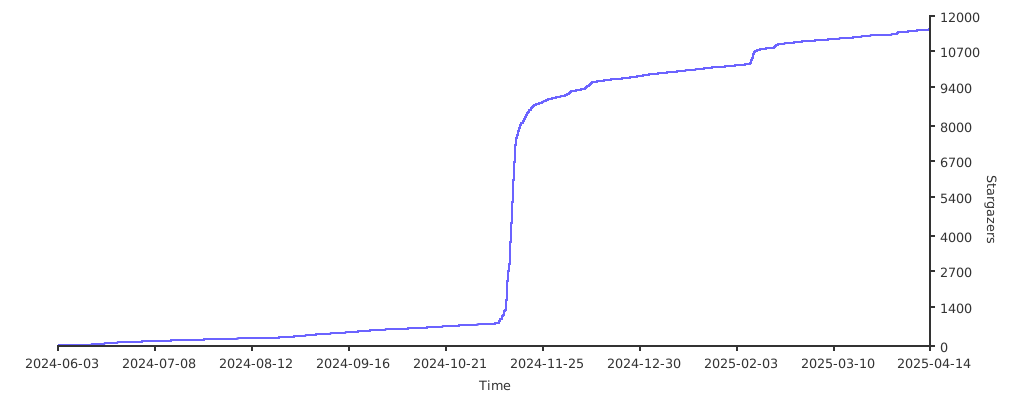
Stars 🌟
Disclaimer ⚖️
Only run this container on Apple hardware, any other use is not permitted by their EULA. The product names, logos, brands, and other trademarks referred to within this project are the property of their respective trademark holders. This project is not affiliated, sponsored, or endorsed by Apple Inc.