daymxn / RogueTower-SlotKeybinds
RogueTower BepInEx Plugin for selecting towers, cards, and even banishing via configurable keybinds.
📥 Clone
https://github.com/daymxn/RogueTower-SlotKeybinds.git


RogueTower BepInEx Plugin for selecting towers, cards, and even banishing via configurable keybinds.





Overview
In RogueTower, you have to manually click towers and upgrade cards to select them. In the case of cards, it even requires two clicks in different spots. When placing several towers back-to-back, or when speedrunning matches, this can become excessive.
This mod provides configurable keybinds that you can use to quickly select towers, upgrade cards, monster cards, and even banishing cards.
Installation
There are two ways to install this mod; manually, or with a mod loader.
Manual Installation
Make sure you have BepInEx installed, and have run the game at least once.
Download the latest released version of the mod on GitHub.
Extract the daymxn.RogueTower.SlotKeybinds.dll file to the BepInEx/plugins directory in your game files. If you
don't have a plugins directory, you can go ahead and create one.
Thunderstore
This mod is published to the Thunderstore repo, where you can use their in-house mod manager or the r2modman mod manager to automate the installation.
You can find this mod under daymxn/SlotKeybinds.
Configuration
After running the game for the first time with the mod installed, a configuration file will be automatically generated
in the BepInEx/config folder called daymxn.RogueTower.SlotKeybinds.cfg. You can configure any of the config options
mentioned in the features section here.
If you're using a mod loader, they typically have a section dedicated to editing config files.
Features
Slot Keybinds
There are 10 different Slot config options, each corresponding to a specific slot.
By default, these are set to the top row of numbers on your keyboard.
These keybinds are used for all the other features.
Select Towers
By enabling the TowerSelect config option, you can use the slot keybinds to enter build mode for
the tower in the specified slot.
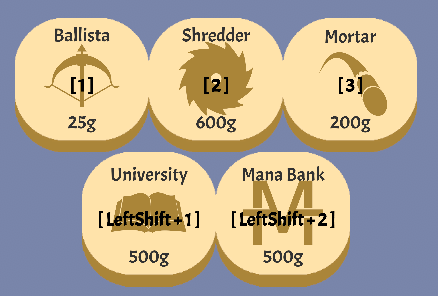
[!TIP]
The overlay text can be toggled for both towers and buildings via theTowersconfig option under theOverlay
section.
Select Buildings
Since buildings are put into a separate row from towers, we use a combo key to access them.
By enabling the BuildingSelect config option, you can set up a combo key via the BuildingKey config option. While
this combo key is held, pressing any of the slot keybinds will enter build mode for the building in
that slot instead of the tower.
This combo key is shown in the overlay gui as well (see the example photo in the select towers section).
Select Upgrade Cards
By enabling the UpgradeCardSelect config option, you can use the slot keybinds to automatically
select an upgrade card when presented.

[!TIP]
The overlay text can be toggled via theUpgradeCardsconfig option under theOverlaysection.
Select Monster Cards
By enabling the MonsterCardSelect config option, you can use the slot keybinds to automatically
select a monster card when presented.

[!TIP]
The overlay text can be toggled via theMonsterCardsconfig option under theOverlaysection.
Banish Upgrade Cards
If you have the BanishCards mod installed, you can set up keybinds to automatically banish upgrade cards when presented.
The feature can be enabled via the Enabled config option under the Banish section.
When enabled, holding the configured key (Key config option under the Banish section) and using a slot keybinds
will banish the card instead of selecting it.
To help signal that you're about to banish a card, the color of the card's image will fade to red while the banish key is held.
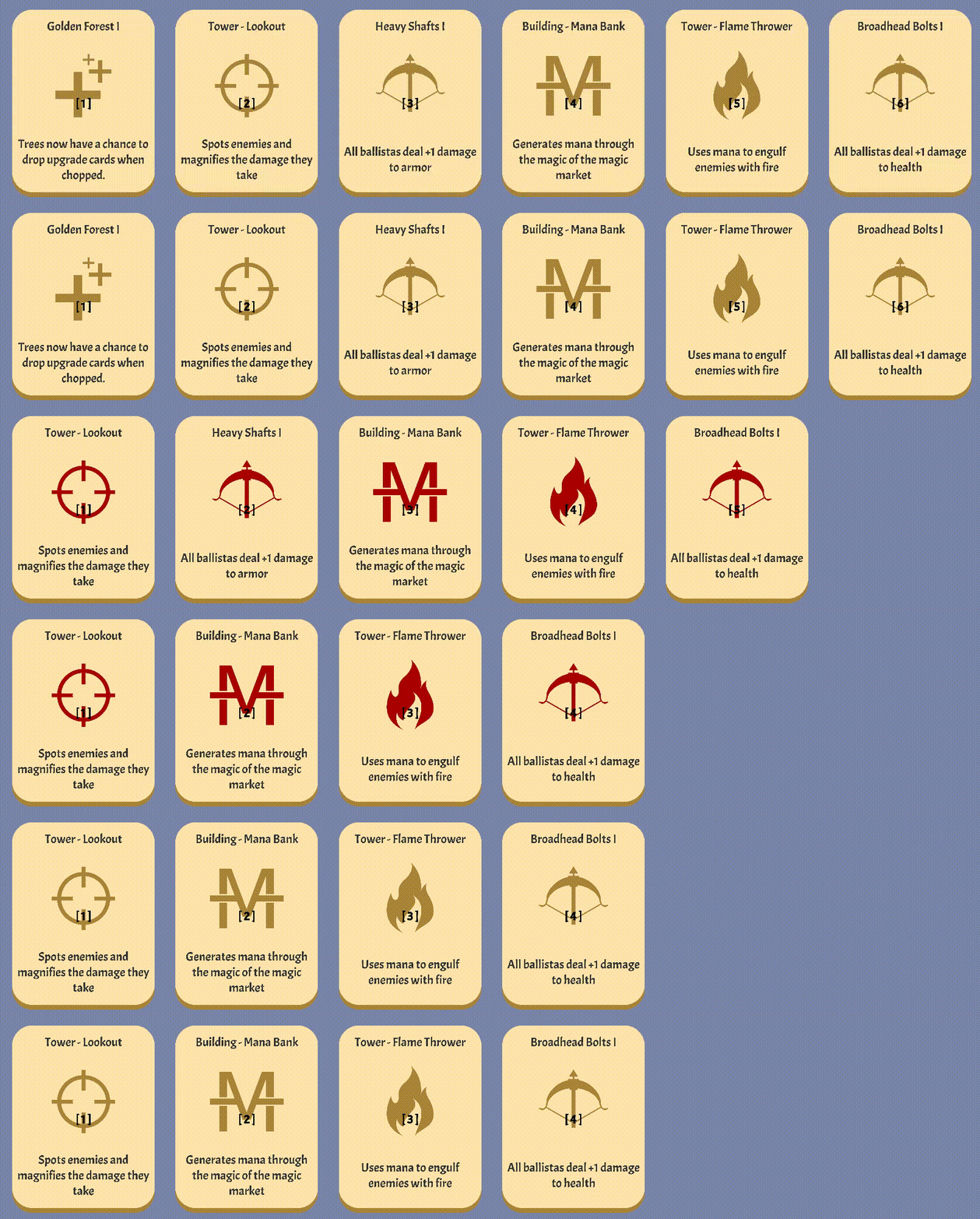
You can toggle this behavior via the CardColors config option under the Banish section. You can also set the color
it fades to via the Color option.