1
2
3
4
5
6
7
8
9
10
11
12
13
14
15
16
17
18
19
20
21
22
23
24
25
26
27
28
29
30
31
32
33
34
35
36
37
38
39
40
41
42
43
44
45
46
47
48
49
50
51
52
53
54
55
56
57
58
59
60
61
62
63
64
65
66
67
68
69
70
71
72
73
74
75
76
77
78
79
80
81
82
83
84
85
86
87
88
89
90
91
92
93
94
95
96
97
98
99
100
101
102
103
104
105
106
107
108
109
110
111
112
113
114
115
116
117
118
119
120
121
122
123
124
125
126
127
128
129
130
131
132
133
134
135
136
137
138
139
140
141
142
143
144
145
146
147
148
149
150
151
152
153
154
155
156
157
158
159
160
161
162
163
164
165
166
167
168
169
170
171
172
173
174
175
176
177
178
179
180
181
182
183
184
185
186
187
188
189
190
191
192
193
194
195
196
197
198
199
200
201
202
203
204
205
206
207
208
209
210
211
212
213
214
215
216
217
218
219
220
221
222
223
224
225
226
227
228
229
230
231
232
233
234
235
236
237
238
239
240
241
242
243
244
245
246
247
248
249
250
251
252
253
254
255
256
257
258
259
260
261
262
263
264
265
266
267
268
269
270
271
272
273
274
275
276
277
278
279
280
281
282
283
284
285
286
287
288
289
290
291
292
293
294
295
296
297
298
299
300
301
302
303
304
305
306
307
308
309
310
311
312
313
314
315
316
317
318
319
320
321
322
323
324
325
326
327
328
329
330
331
332
333
334
335
336
337
338
339
340
341
342
343
344
345
346
347
348
349
350
351
352
353
354
355
356
357
358
359
360
361
362
363
364
365
366
367
368
369
370
371
372
373
374
375
376
377
378
379
380
381
382
383
384
385
386
387
388
389
390
391
392
393
394
395
396
397
398
399
400
401
402
403
404
405
406
407
408
409
410
411
412
413
414
415
416
417
418
419
420
421
422
423
424
425
426
427
428
429
430
431
432
433
434
435
436
437
438
439
440
441
442# Ruff extension for Visual Studio Code
[](https://github.com/astral-sh/ruff)
[](https://pypi.python.org/pypi/ruff)
[](https://pypi.python.org/pypi/ruff)
[](https://pypi.python.org/pypi/ruff)
[](https://github.com/astral-sh/ruff-vscode/actions)
A Visual Studio Code extension for [Ruff](https://github.com/astral-sh/ruff), an extremely fast
Python linter and code formatter, written in Rust. Available on the [Visual Studio Marketplace](https://marketplace.visualstudio.com/items?itemName=charliermarsh.ruff).
Ruff can be used to replace Flake8 (plus dozens of plugins), Black, isort, pyupgrade, and more,
all while executing tens or hundreds of times faster than any individual tool.
The extension ships with `ruff==0.14.11`.
## Highlights
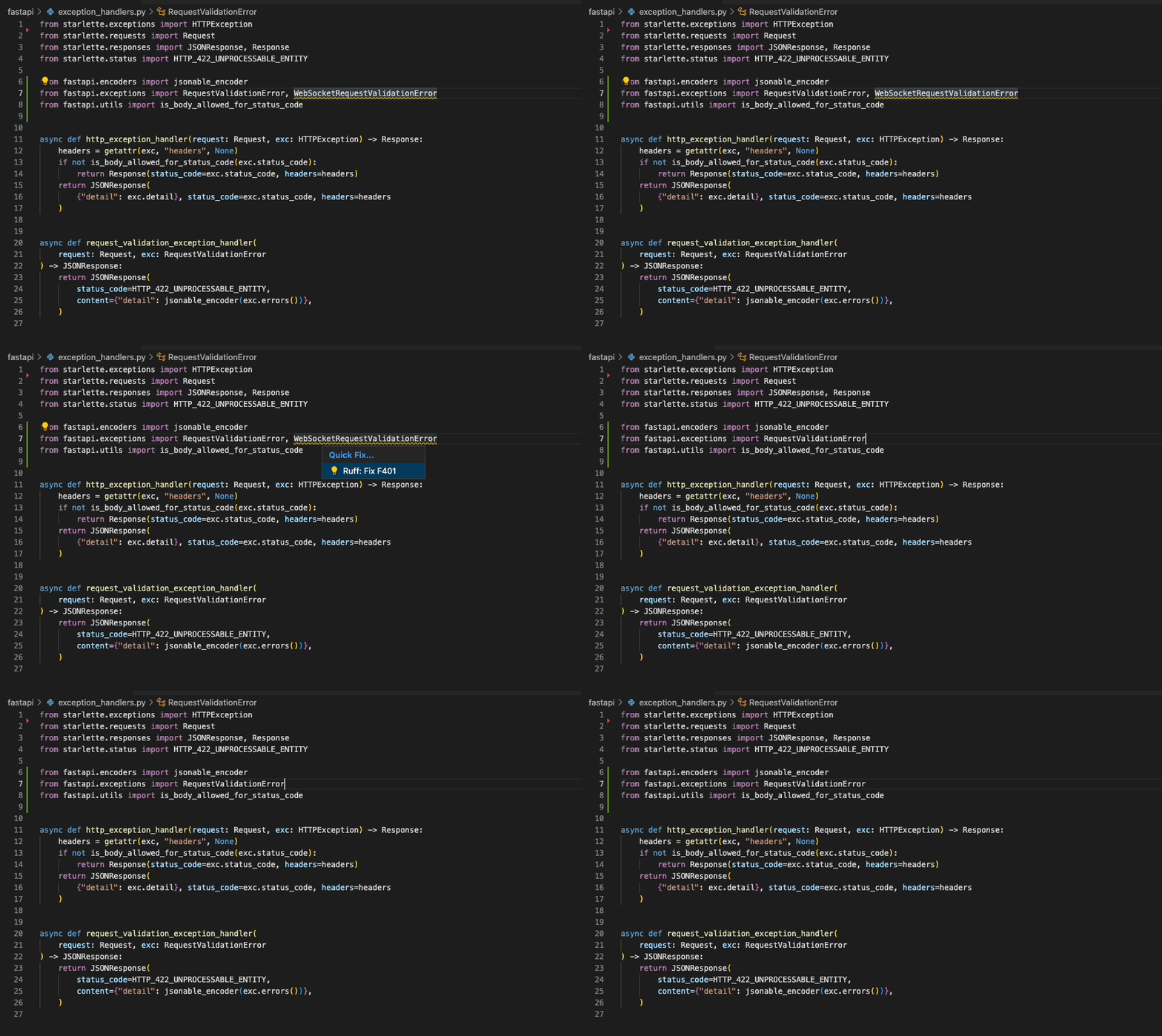
### "Quick Fix" actions for auto-fixable violations (like unused imports)
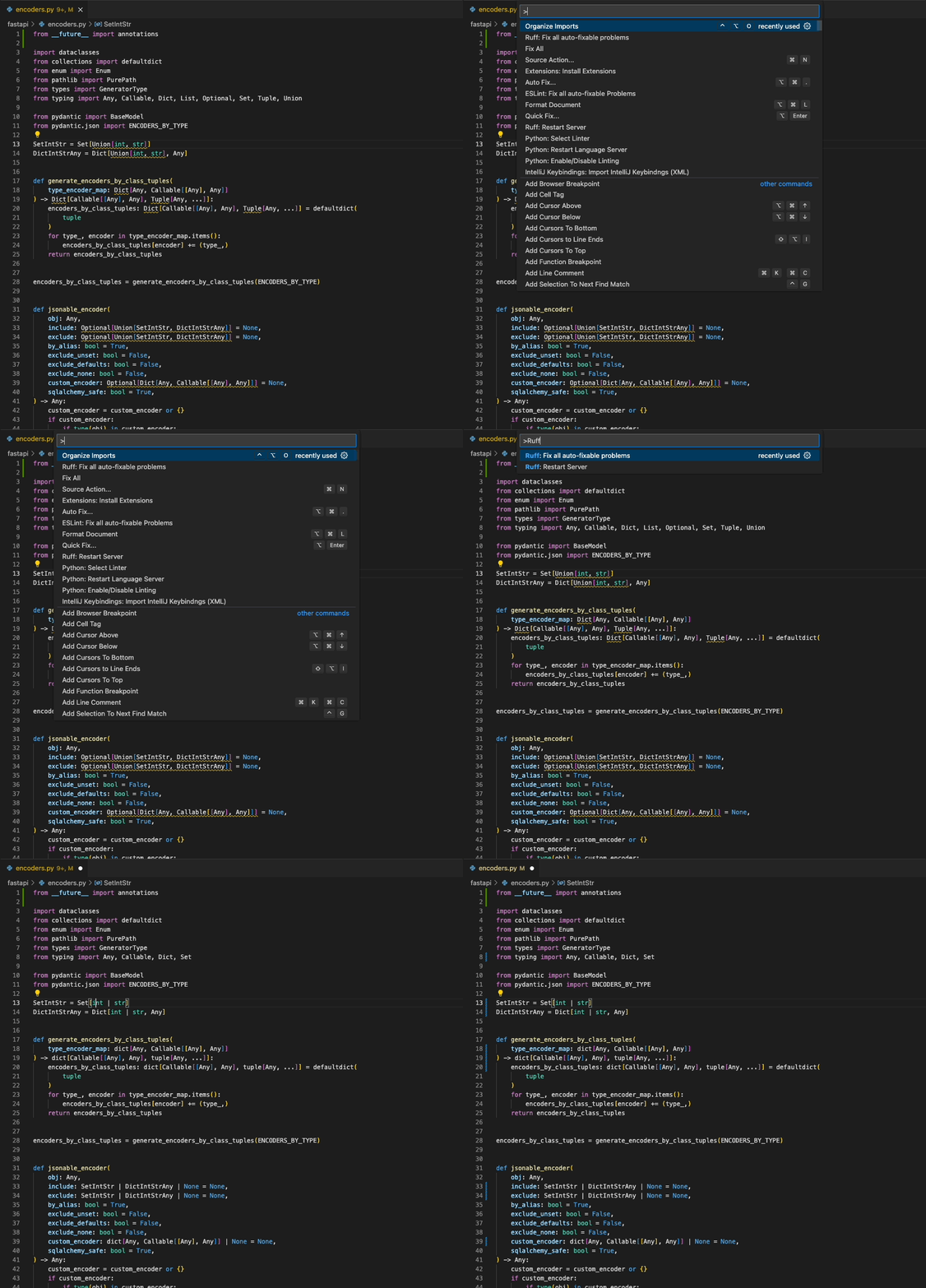
### "Fix all": automatically fix all auto-fixable violations
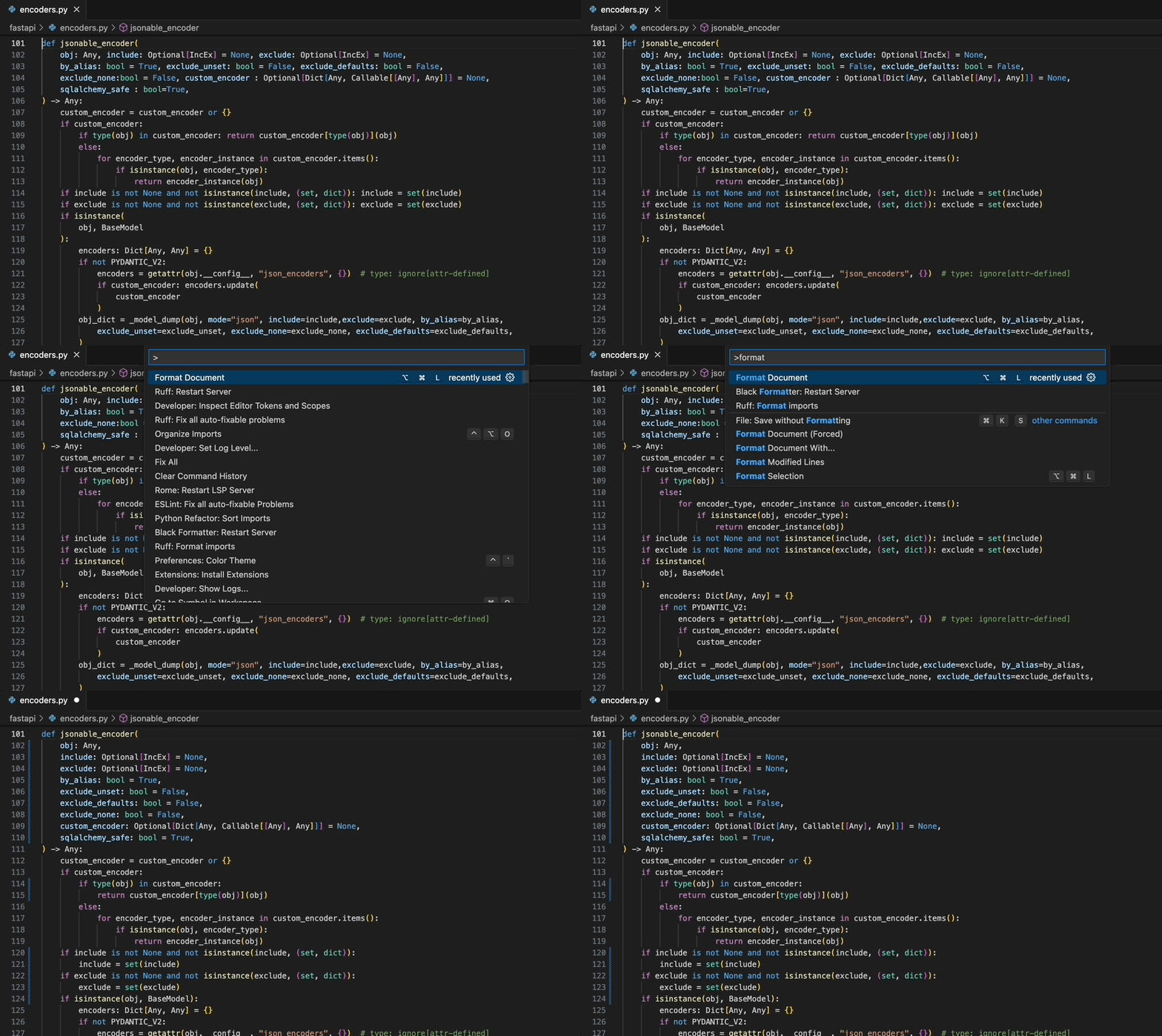
### "Format Document": Black-compatible code formatting
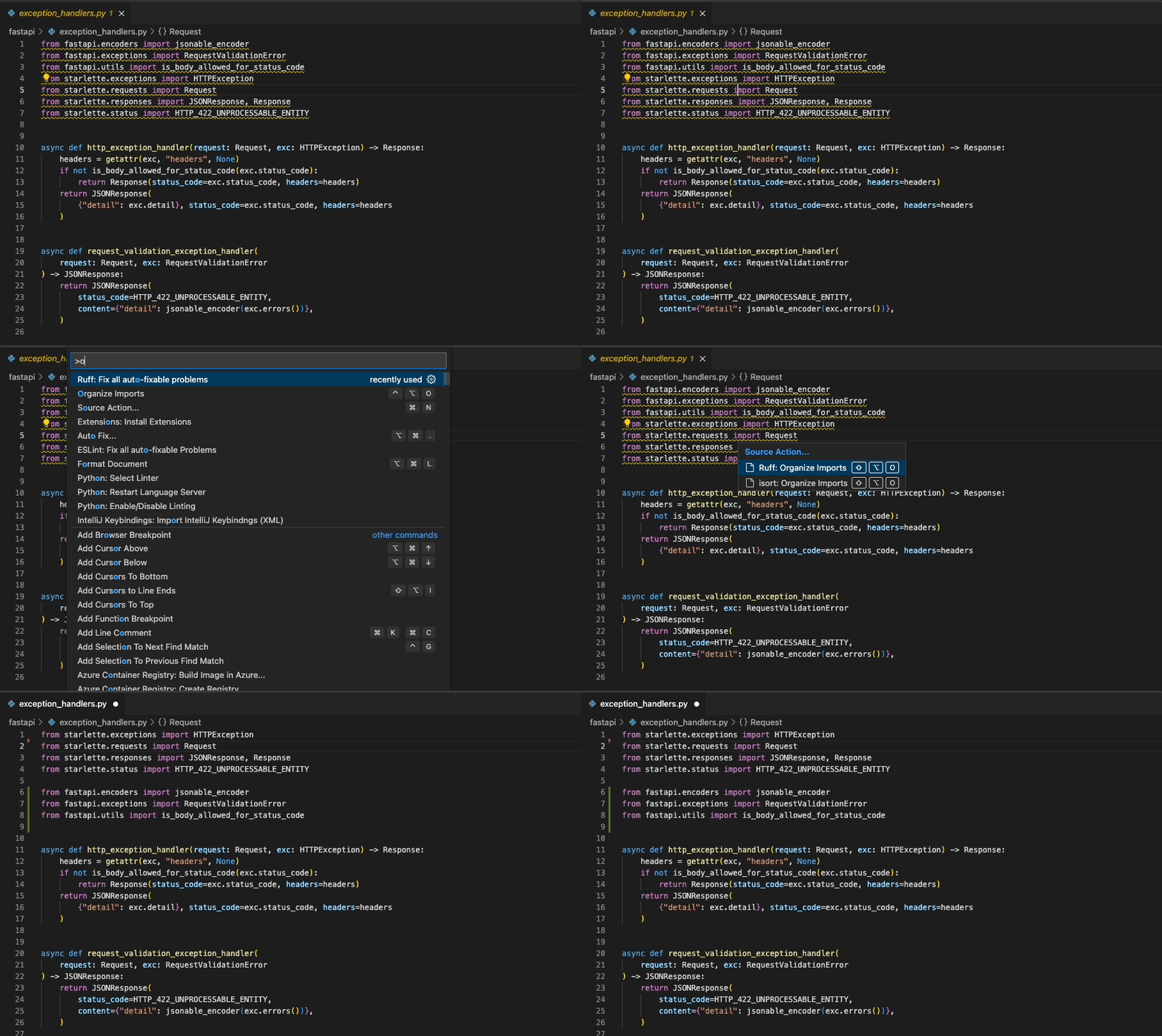
### "Organize Imports": `isort`-compatible import sorting
## Usage
Once installed in Visual Studio Code, `ruff` will automatically execute when you open or edit a
Python or Jupyter Notebook file.
If you want to disable Ruff, you can [disable this extension](https://code.visualstudio.com/docs/editor/extension-marketplace#_disable-an-extension)
per workspace in Visual Studio Code.
## Fix safety
Ruff's automatic fixes are labeled as "safe" and "unsafe". By default, the "Fix all" action will not apply unsafe
fixes. However, unsafe fixes can be applied manually with the "Quick fix" action. Application of unsafe fixes when
using "Fix all" can be enabled by setting `unsafe-fixes = true` in your Ruff configuration file or adding
`--unsafe-fixes` flag to the "Lint args" setting.
See the [Ruff fix docs](https://docs.astral.sh/ruff/configuration/#fix-safety) for more details on how fix
safety works.
## Jupyter Notebook Support
The extension has support for Jupyter Notebooks via the [Notebook Document Synchronization] capabilities of the Language
Server Protocol which were added in 3.17. This has been implemented in `ruff-lsp` as of version `v0.0.43` which provides
full support for all of the existing capabilities available to Python files in Jupyter Notebooks, including diagnostics,
code actions, and formatting.
This requires Ruff version `v0.1.3` or later.
### Native Server
Jupyter Notebook support was stabilized in [Ruff `0.6.0`](https://astral.sh/blog/ruff-v0.6.0#jupyter-notebooks-are-now-linted-and-formatted-by-default) and
is now linted and formatted by default. Before this version, the native server required users to explicitly include Jupyter Notebooks
in the set of files to be linted and formatted. This can be done by updating the [`extend-include`](https://docs.astral.sh/ruff/settings/#extend-include)
setting in the Ruff configuration file.
```toml
[tool.ruff]
extend-include = ["*.ipynb"]
```
For more information, refer to the [Jupyter Notebook discovery](https://docs.astral.sh/ruff/configuration/#jupyter-notebook-discovery) section
of the Ruff documentation.
[notebook document synchronization]: https://microsoft.github.io/language-server-protocol/specifications/lsp/3.17/specification/#notebookDocument_synchronization
## Untrusted Workspace
_New in v2024.32.0_
The extension supports loading in an [untrusted workspace](https://code.visualstudio.com/docs/editor/workspace-trust).
When the workspace is untrusted, the extension will always use the Rust-based language server even if the [`nativeServer`](https://docs.astral.sh/ruff/editors/settings/#nativeserver)
setting is set to `off`. This is because the Python-based language server requires a Python interpreter to run, which
is not allowed in an untrusted workspace. This also means that the extension will always use the bundled executable of
the `ruff` binary regardless of any other settings.
The following settings are not supported in an untrusted workspace:
- [`ruff.configuration`](https://docs.astral.sh/ruff/editors/settings/#configuration)
- [`ruff.importStrategy`](https://docs.astral.sh/ruff/editors/settings/#importstrategy)
- [`ruff.interpreter`](https://docs.astral.sh/ruff/editors/settings/#interpreter)
- [`ruff.path`](https://docs.astral.sh/ruff/editors/settings/#path)
## Settings
Refer to the [Ruff Language Server documentation](https://docs.astral.sh/ruff/editors/settings/) for a full list of
settings available in the extension.
### Configuring VS Code
You can configure Ruff to format Python code on-save by enabling the `editor.formatOnSave` action in
`settings.json`, and setting Ruff as your default formatter:
```json
{
"[python]": {
"editor.formatOnSave": true,
"editor.defaultFormatter": "charliermarsh.ruff"
}
}
```
And, for Jupyter Notebooks:
```json
{
"notebook.formatOnSave.enabled": true,
"[python]": {
"editor.defaultFormatter": "charliermarsh.ruff"
}
}
```
You can configure Ruff to fix lint violations on-save by enabling the `source.fixAll` action in
`settings.json`:
```json
{
"[python]": {
"editor.codeActionsOnSave": {
"source.fixAll": "explicit"
}
}
}
```
And, for Jupyter Notebooks:
```json
{
"notebook.codeActionsOnSave": {
"notebook.source.fixAll": "explicit"
}
}
```
Similarly, you can configure Ruff to organize imports on-save by enabling the
`source.organizeImports` action in `settings.json`:
```json
{
"[python]": {
"editor.codeActionsOnSave": {
"source.organizeImports": "explicit"
}
}
}
```
And, for Jupyter Notebooks:
```json
{
"notebook.codeActionsOnSave": {
"notebook.source.organizeImports": "explicit"
}
}
```
Taken together, you can configure Ruff to format, fix, and organize imports on-save via the
following `settings.json`:
```json
{
"[python]": {
"editor.formatOnSave": true,
"editor.codeActionsOnSave": {
"source.fixAll": "explicit",
"source.organizeImports": "explicit"
},
"editor.defaultFormatter": "charliermarsh.ruff"
}
}
```
And, for Jupyter Notebooks:
```json
{
"notebook.formatOnSave.enabled": true,
"notebook.codeActionsOnSave": {
"notebook.source.fixAll": "explicit",
"notebook.source.organizeImports": "explicit"
},
"[python]": {
"editor.defaultFormatter": "charliermarsh.ruff"
}
}
```
_Note: if you're using Ruff to organize imports in VS Code and also expect to run Ruff from the
command line, you'll want to enable Ruff's isort rules by adding `"I"` to your
[`extend-select`](https://docs.astral.sh/ruff/settings/#extend-select)._
_Note: The above-mentioned Notebook configurations will run the action for each cell individually.
This is the way VS Code handles Notebook actions and is unrelated to `ruff-lsp`. If you'd prefer to
run them on the entire notebook at once, prefer to use the `Ruff` prefixed commands such as
`Ruff: Organize Imports` and `Ruff: Fix all auto-fixable problems`._
If you're using the [VS Code Python extension](https://marketplace.visualstudio.com/items?itemName=ms-python.python),
you can configure VS Code to fix violations on-save using Ruff, then re-format with [the Black extension](https://marketplace.visualstudio.com/items?itemName=ms-python.black-formatter),
via the following `settings.json`:
```json
{
"[python]": {
"editor.formatOnSave": true,
"editor.codeActionsOnSave": {
"source.fixAll": "explicit"
},
"editor.defaultFormatter": "ms-python.black-formatter"
}
}
```
If you'd like to use Ruff as a linter, but continue to sort imports with the [isort extension](https://marketplace.visualstudio.com/items?itemName=ms-python.isort),
you can disable Ruff's import-sorting capabilities via the following `settings.json`:
```json
{
"[python]": {
"editor.codeActionsOnSave": {
"source.fixAll": "explicit",
"source.organizeImports": "explicit"
}
},
"ruff.organizeImports": false
}
```
If you'd like to run Ruff on-save, but avoid allowing other extensions to run on-save, you can
use Ruff's scoped `source.fixAll` and `source.organizeImports` actions via the following `settings.json`:
```json
{
"[python]": {
"editor.codeActionsOnSave": {
"source.fixAll.ruff": "explicit",
"source.organizeImports.ruff": "explicit"
}
}
}
```
If you'd like to run Ruff, but disable code formatting (by Ruff, or by another formatter), be sure
to unset the `editor.defaultFormatter` in `settings.json`:
```json
{
"[python]": {
"editor.defaultFormatter": null,
"editor.codeActionsOnSave": {
"source.fixAll": "explicit"
}
}
}
```
### Configuring Ruff
The Ruff VS Code extension will respect any Ruff configuration as defined in your project's
`pyproject.toml`, `ruff.toml`, or `.ruff.toml` file (see: [_Configuring Ruff_](https://docs.astral.sh/ruff/configuration/) in the Ruff documentation).
In general, we recommend configuring Ruff via `pyproject.toml` or `ruff.toml` so that your
configuration is shared between the VS Code extension and the command-line tool, and between all
contributors to the project.
Unless you're using the [Python-based language server](#python-based-language-server-ruff-lsp), you can configure some common
settings in VS Code directly, like `ruff.lineLength` (to configure the line length for the linter
and formatter) or `ruff.lint.select` (to configure the enabled lint rules):
```json
{
"ruff.lineLength": 88,
"ruff.lint.select": ["C", "E", "F", "W"]
}
```
To use a custom configuration file, set the `ruff.configuration` setting to the path of your
`ruff.toml` or `pyproject.toml` file:
```json
{
"ruff.configuration": "/path/to/ruff.toml"
}
```
Finally, to use a common Ruff configuration across all projects, consider creating a user-specific
`pyproject.toml` or `ruff.toml` file as described in the [FAQ](https://docs.astral.sh/ruff/faq/#how-can-i-change-ruffs-default-configuration).
#### Python-based language server (`ruff-lsp`)
> [!WARNING]
>
> [`ruff-lsp`](https://github.com/astral-sh/ruff-lsp) is deprecated and will be
> removed in a future release. Please switch to the Rust-based language server
> (`ruff server`) instead.
The Ruff extension will automatically use the Rust-based language server (`ruff server`) if the
following conditions are met:
1. The `ruff` executable is at least version `0.5.3`
2. The `ruff.nativeServer` setting is set to `auto` (default)
3. None of the settings that are exclusive to the Python-based language server
are enabled (i.e., those that are marked as "unused by the native language server" in the
[_Settings_](https://docs.astral.sh/ruff/editors/settings/#vs-code-specific) documentation).
You can opt-out of the Rust-based language server by setting
the `nativeServer` setting to `off`. If set to `off`, the extension
will use the Python-based language server (`ruff-lsp`).
```json
{
"ruff.nativeServer": "off"
}
```
You can use the `ruff.lint.args` and
`ruff.format.args` settings in `settings.json` to pass command-line arguments to Ruff.
For example, to enable the `pyupgrade` rule set in VS Code, add the following to `settings.json`:
```json
{
"ruff.lint.args": ["--extend-select=UP"]
}
```
To override the VS Code extension's Ruff configuration entirely, and override any local
`pyproject.toml` file or similar, you can pass a custom `--config` argument to the Ruff CLI, again
using the `ruff.lint.args` and `ruff.format.args` options in `settings.json`:
```json
{
"ruff.lint.args": ["--config=/path/to/ruff.toml"],
"ruff.format.args": ["--config=/path/to/ruff.toml"]
}
```
Finally, to use a common Ruff configuration across all projects, consider creating a user-specific
`pyproject.toml` or `ruff.toml` file as described in the [FAQ](https://docs.astral.sh/ruff/faq/#does-ruff-support-numpy-or-google-style-docstrings).
## Commands
| Command | Description |
| -------------------------------------------------- | ----------------------------------------------- |
| Ruff: Fix all auto-fixable problems | Fix all auto-fixable problems |
| Ruff: Format Imports | Organize imports |
| Ruff: Format Document | Format the entire document |
| Ruff: Restart Server | Force restart the linter server |
| Ruff: Print debug information (native server only) | Print debug information about the native server |
| Ruff: Show client logs | Open the Ruff output channel |
| Ruff: Show server logs | Open the Ruff Language Server output channel |
## Requirements
This extension requires a version of the VSCode Python extension that supports Python 3.7+. Ruff
itself is compatible with Python 3.7 to 3.13.
## Troubleshooting
If you encounter any issues with the extension or the language server, please refer to the
logs in the corresponding output channel in VS Code. The extension logs are in the "Ruff"
output channel and the language server logs are in the "Ruff Language Server" output channel.
To open the output panel, use the `Output: Show Output Channels` command in the command palette
(`Ctrl+Shift+P` or `Cmd+Shift+P`), then select "Ruff" or "Ruff Language Server". Alternatively,
you can use the `Ruff: Show client logs` and `Ruff: Show server logs` command to open the "Ruff"
and "Ruff Language Server" output channel respectively. The `Ruff: Print debug information` command
can be used to print debug information which can include details about the current open file.
The default log level for the extension is `info` which can be changed from the output panel using
the settings icon in the top right corner of the panel.
The default log level for the language server is `info` which can be changed using the `ruff.logLevel`
setting in your `settings.json`:
```json
{
"ruff.logLevel": "info"
}
```
The language server logs can be directed to a file by setting the `ruff.logFile` setting in
your `settings.json`:
```json
{
"ruff.logFile": "/path/to/ruff.log"
}
```
To capture the LSP messages between the editor and the server, set the `ruff.trace.server`
setting to either `messages` or `verbose` in your `settings.json`:
```json
{
"ruff.trace.server": "messages"
}
```
This will be visible in the "Ruff Language Server Trace" output channel. The difference between
`messages` and `verbose` is that `messages` only logs the method name for both the request
and response, while `verbose` also logs the request parameters sent by the client and the
response result sent by the server.
The extension also displays certain information in the status bar. This can be pinned to the status
bar as a permanent item.
<details><summary><b>How to pin the Ruff status item in VS Code toolbar?</b></summary>
<img
width="677"
alt="Instructions to pin 'Ruff' status item on VS Code editor toolbar"
src="https://github.com/user-attachments/assets/fae75b6a-ae3f-4933-ad9c-61c6374f435b"
>
</details>
The status bar item displays the status of the language server, specifically whether it's using the
Rust-based language server (`Ruff (native)`) or the Python-based language server (`Ruff (ruff-lsp)`).
It can also be clicked to open the Ruff output channel.
## License
MIT
<div align="center">
<a target="_blank" href="https://astral.sh" style="background:none">
<img height="24px" src="https://raw.githubusercontent.com/astral-sh/ruff/main/assets/png/Astral.png">
</a>
</div>